Snapseed's Hidden Tools for iPhone Photography Editing
Google's free Snapseed app offers powerful, often overlooked editing tools for iPhone photographers, from selective adjustments to portrait enhancements
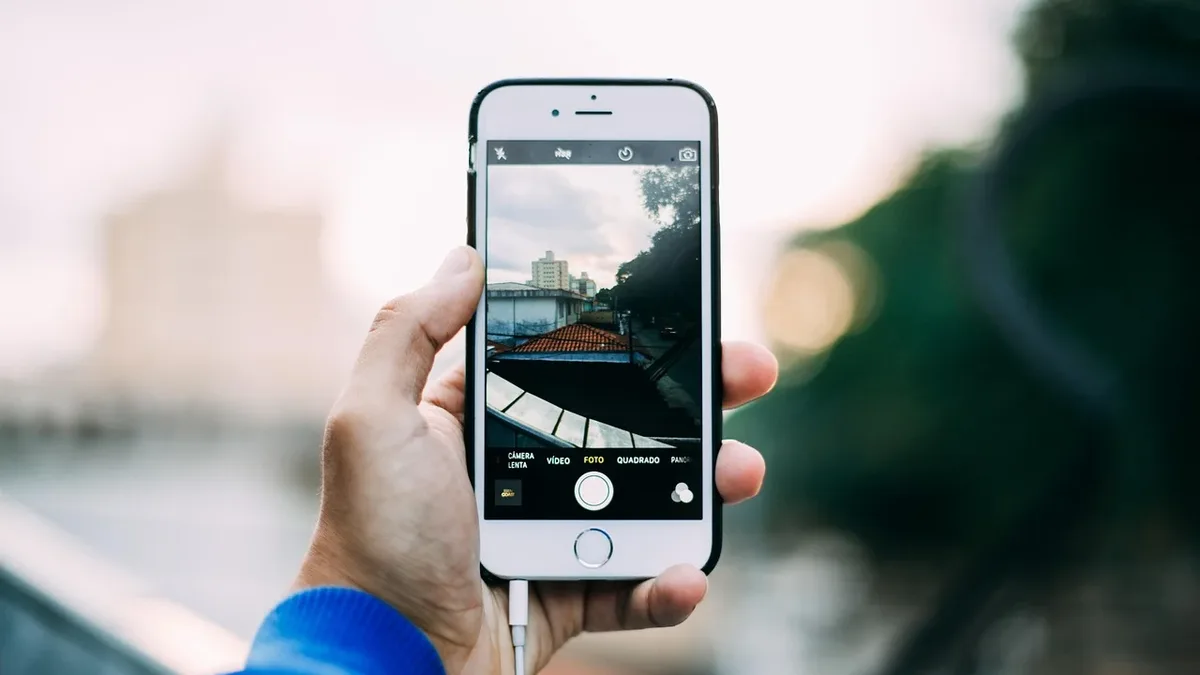
Google's Snapseed remains a free, ad-free photo-editing application for iPhone and Android, offering a suite of advanced tools that many users underutilize. The app, available on the Apple App Store and for Android, combines with the increasingly powerful AI tools built into iPhones to provide a comprehensive editing toolkit for smartphone photographers.
Snapseed: a recap of the basics
Opening a photo in Snapseed presents three initial options: Styles, Tools, and Export. The Styles menu includes basic filters like 'Bright,' 'Accentuate,' and 'Pop,' with the latter noted for lifting exposure and adding punch. Tools for black and white conversion, such as 'Fine Art' and 'Silhouette,' are also available here. The Tools section grants access to a surprisingly wide range of editing functions, while Export handles saving and sharing.
Getting started with editing tools
Some tools, like Drama and HDR-scape, are okay in moderation but can create obviously over-processed, apocalyptic-looking skies or lurid colors if pushed too far. Retrolux and Grunge should also be used with caution.
Improving composition
The Crop tool allows for aspect ratio changes, including a 'Square' option and a 'Free' mode for unrestricted cropping, which is a good way of removing distractions. A Rotate tool simplifies straightening wonky horizons or lines. Snapseed can fix this automatically, and you can manipulate the image by swiping to get more options. The Perspective tool works similarly but can be trickier.
We all need some structure
For image clarity, the Details section houses Sharpen and Structure tools. The Sharpen tool is useful but should not be overused to avoid adding artefacts. Structure adjusts midtone contrast to enhance textures and make objects appear more prominent without affecting edges. It is particularly useful for bringing out texture but should be used sparingly on portraits to avoid a gritty, warts-and-all effect.
Time for some healing
Snapseed includes a Healing tool for removing distractions or blemishes, which is quite basic but works, especially against a plain background. Select the Healing brush and zoom into the area by swiping, then brush over the area to 'heal'.
**Selective Editing and Portrait Tools**
The Portrait tool offers face lightening, skin smoothing, and eye clarity adjustments via a slider icon, with a warning against excessive skin smoothing. A Head Pose tool can slightly adjust a subject's head angle.
For localized edits, the Brush tool enables Dodge & Burn for brightening or darkening specific areas. Exposure, color temperature, and saturation can be tweaked for the selected brush area. Tapping an Eye icon reveals edited sections in red.
**Advanced Masking and Effects**
The Masking tool allows for complex edits, such as making a background black and white while keeping a subject in color. This involves using the Tune Image tool to set Saturation to -100, then accessing the Edit History to use a brush for selective application. The Double Exposure tool under Tools merges two images with controls for blending and color adjustment. The source describes the masking process as involved but manageable with practice.